What’s This?
I help you get started with Google’s Flutter, the most popular cross-platform UI toolkit for building native mobile, desktop, and web applications.
Table Of Contents
- What’s This?
- Alternatives
- Learning Flutter & Dart
- UI
- Sample Application: Native Look & Feel With Flutter
- Architecture
- Developer Productivity
- Plugins (Libraries)
Alternatives
Use React Native.
Learning Flutter & Dart
The Flutter website is an excellent place to get familiar with Flutter. Flutter uses the Dart programming language to create natively-compiled applications for mobile, web, desktop & embedded. Both Flutter and Dart can use plugins that have [a great portal]((#plugin-portal).
Learning Dart
You start with the Dart language tour. Java developers take the “Intro to Dart for Java Developers” next. Then you have options:
- Google has several free tutorials for Dart.
- Code with Andrea has a 10-hour Dart course.
Installing Flutter
Here are the instructions, straight from the Flutter website:
Learning Declarative UIs
Flutter uses a declarative approach to build UIs. I have a page dedicated to declarative UIs. Please check it out!
Learning Flutter
Here’s a selection of Flutter tutorials and courses:
- Google has several free tutorials for Flutter.
- Code with Andrea has two paid courses:
- a 2.5-hours “Flutter REST API Crash Course” (I took it & liked it a lot!), and
- a 21-hour course on Flutter & Google Firebase.
- academind has a Flutter course with 41 hours of video. I used the 2019 version to learn Flutter and can highly recommend it! The same course is on Udemy, where it may be cheaper in a sale. academind regularly updates their courses to work with the latest versions of the frameworks they teach.
- freeCodeCamp has at least two free Flutter courses. Now Flutter develops quickly, spo these courses are pretty old by that standard and may not work well anymore today.
- a one-hour course for mobile apps, and
- a three-hour course that claims to include desktop & web, too.
UI
Widget Sets
Flutter doesn’t use native UI elements (such as text fields or buttons). Instead, it emulates them. Flutter uses the Google open-source Skia Graphics library for that. Chrome and Firefox, Chrome OS, and Android also use Skia. But this also means Flutter only paints pixels: It has to recreate all native iOS/Android UI elements in Flutter. Flutter calls the UI elements “widgets”. Out of the box, Flutter has two widget sets:
- Material Components: This set is the default set for Flutter. It’s available everywhere Flutter runs.
- Cupertino: These are iOS-style widgets that are best used when Flutter runs on iPhone or iPad. The set is incomplete: The table view, a heavily used UI element, is missing. A package like
flutter_cupertino_settingscan fill this void.
By default, we manually have to switch between these two widget sets in our code: Pick a Cupertino widget on iOS/iPadOS and a Material one everywhere else. flutter_platform_widgets does that for us.
There are two open-source widget sets that provide widgets with native look & feel for Windows and macOS: fluent_ui and macos_ui.
Responsive & Adaptive Apps
According to Flutter, a responsive app changes with the screen size and orientation. An adaptive app changes with device type (mobile & desktop) and input type (keyboard & mouse vs. touch).
From what I can tell, the advice for a responsive app is to check the screen width and then update the UI. That seems like a primitive solution compared to other approaches. The web, for instance, has the Bootstrap Grid, CSS Flexbox, and CSS Grid. Android has size classes, as does iOS.
I’ve used flutter_bootstrap for responsive layout on mobile.
Sample Application: Native Look & Feel With Flutter
Introduction
I built a sample Flutter application with five different, native “Look & Feels” with one codebase: Web, iOS, Android, Windows, and Mac. Here are screenshots from the form screen of that application which demonstrate the differences well.
Web

iOS

Android

Windows

macOS

Getting the Code
The source code for this project is on Github:
You need Flutter to run the application. Please find the installation instructions above. The Flutter installation instructions also tell you which additional tools you need. That’s typically IDEs, such as Android Studio, Visual Studio for Windows, or Apple’s Xcode.
Here’s which platforms you can run. That depends on your development machine operating system:
- Windows: Android, Web, Windows
- Linux: Android, Web
- macOS: Android, Web, iOS, macOS
Source Structure
- This is the build file. It lists the dependencies.
- The platform-specific projects are in the following folders:
web,ios,android,windows,macos, andlinux. - The Flutter Dart sources are in the
libfolder. It has two folders:uicontains the home page widget and the three screens.sharedhas cross-platform, native widgets, like button, text field, or even an entire app. - Most cross-platform widget have the same structure: The standard Flutter
build()method has answitchstatement that calls platform-specific methods to build the widget. Here’s the buttonbuild()method. - The
sharedfolder also contains service classes for device & display and some domain classes. main.dartis the entry point of the application. It opens the home page which shows three screens:InfoPage,FormPage, andSettingsPage.- The home page using the platform navigation abstraction: bottom navbar on mobile, hamburger menu on the web & Linux, and sidebar for Windows and macOS.
- The settings page allows switching the look & feel: On iOS, the app can only switch to Android and vice versa. On the other platforms, every look & feel is available.
- Switching the look and feel sends an event in
SDevice._setCurrentPlatform()which forcesCrossAppto rebuild the UI.
Architecture
Use Existing Components (Plugins)
The best code is the one we don’t have to write. That’s why we’d like to use open-source libraries in our apps. In Flutter, they are called plugins. Please see the “Plugins (Libraries)” section below.
Write Your Own Components
“Don’t repeat yourself” (DRY) is a valuable software development principle. It generally leads to apps that are easier to maintain. Applying DRY means that we create our own components. There are two prime candidates for that in Flutter:
- We often style widgets, like buttons or text fields, the same way - fonts, colors, padding, etc. And when we then change, say, the color of a button, we now need to change the color in every place we use it. Instead, we should make that button a component - a widget. Then we don’t have to copy all this code around and have to change the color only in one place.
- The same applies for our business logic. Let’s say, we load data from and save data to our back-end with HTTP. So we copy the same boilerplate code about HTTP calls and HTTP headers and error handling everywhere. Again, we should make that a component - a class. That class has all the boilerplate code. And all we do is pass in a URL - or a URL and an object to send.
Use Vertical & Horizontal Layers
I suggest structuring an application with horizontal and vertical layers. That makes it easier to manage in the long run. “Manage” means fixing bugs and adding features. But “manage” also means “Where the heck is the code that does X?!”.
Let’s start with vertical layers. We can imagine them as columns in our architecture.
- Folders for widgets are an easy start in Flutter. Typically, we have one widget per page. So let’s put them into folders. If our app requires sign-in, we have one folder for pages when not signed in, and one folder for the pages when signed in. And our app probably has multiple areas. So we have one folder per area in the “signed-in folder”.
- Our business logic can have vertical layers, too. Bounded contexts, a concept from Domain-driven design, defines such layers. Let’s say we have an online shop. Then we have areas like the product catalog, inventory management, shipping, and invoicing. They often use the same words but with different meaning: In the product catalog, each product exists only once. In inventory management, a product can exist hundreds or thousands of times, with attributes that the product catalog doesn’t care about (such as a physical location in storage). That’s why we can model product catalog, inventory management, shipping, and invoicing as separate, concealed areas - bounded contexts. Each context has its own set of domain objects and business logic.
We can also have horizontal layers, the rows in our architecture.
- We should separate our widgets (the presentation logic) from our business logic. So the widgets would instantiate a business logic class and call a load or save method on it.
- Our business logic itself could contain multiple layers. For instance, our app can have local storage on the device. That would be separate from the layer that calls our back-end.
Redux as Global Data Store
I use Redux as my global data store. When that store changes, my UI refreshes. That helps avoiding UI inconsistencies. And that local state helps my app work when it’s offline.
Redux started in the web world. In Flutter, I persist my state as JSON. I use flutter_redux, redux_persist_flutter, and redux_persist.
Here’s a complete tutorial. Please note, unlike what we see in that tutorial, our code can refresh widgets if just parts of the Redux store change. In the example below, the widget only rebuilds if the current users changes:
|
|
Developer Productivity
Flutter Hot Reload makes code changes go live in the device/simulator within a second. It’s the main reason why working with Flutter can be such fun! I mentioned it in the talk. Here is a video demonstrating it.
Flutter Hot Restart gets the app back into its initial state. That takes 3-5 seconds on my M1 Max MacBook Pro.
Plugins (Libraries)
Plugin Portal
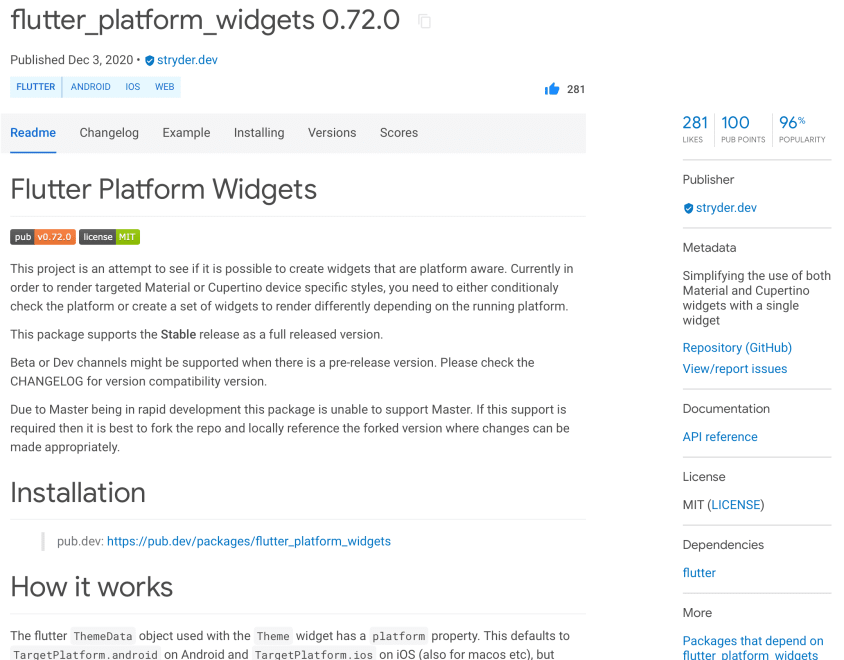
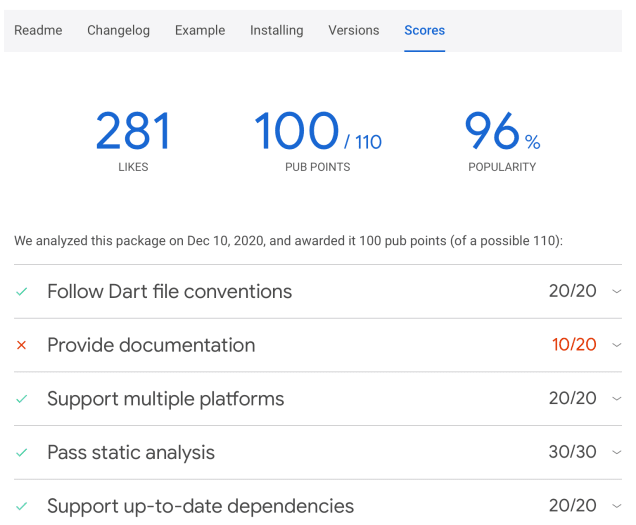
The Flutter plugin portal is awesome! It gives you example code, popularity metrics, and code quality information.
Here is the main plugin page:
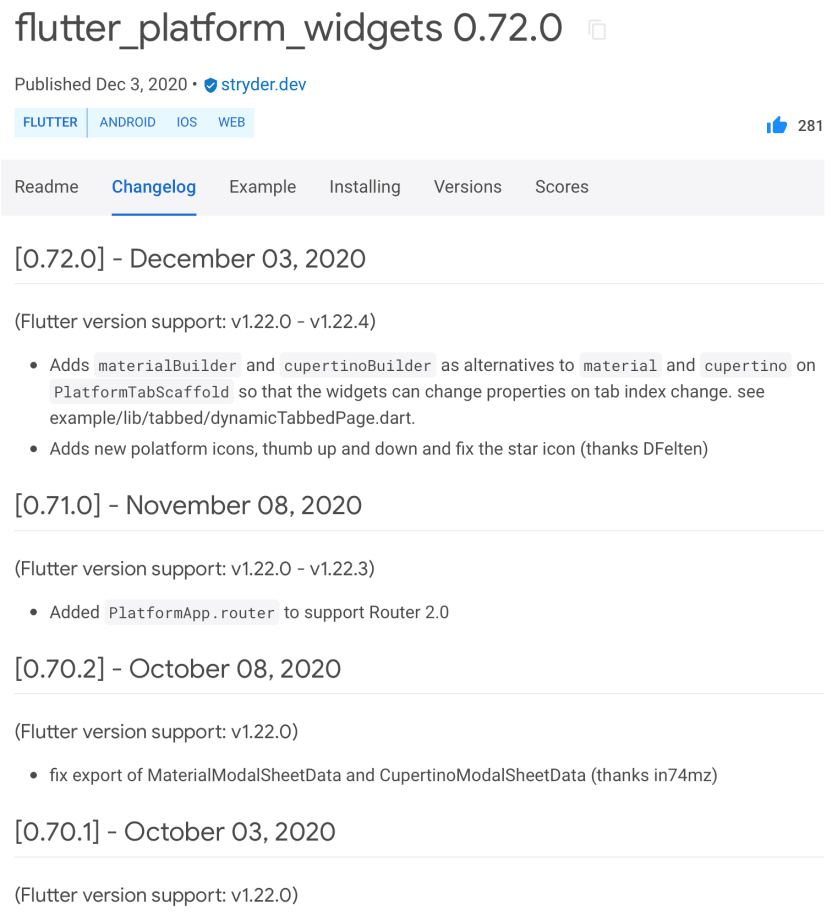
This is the changelog:
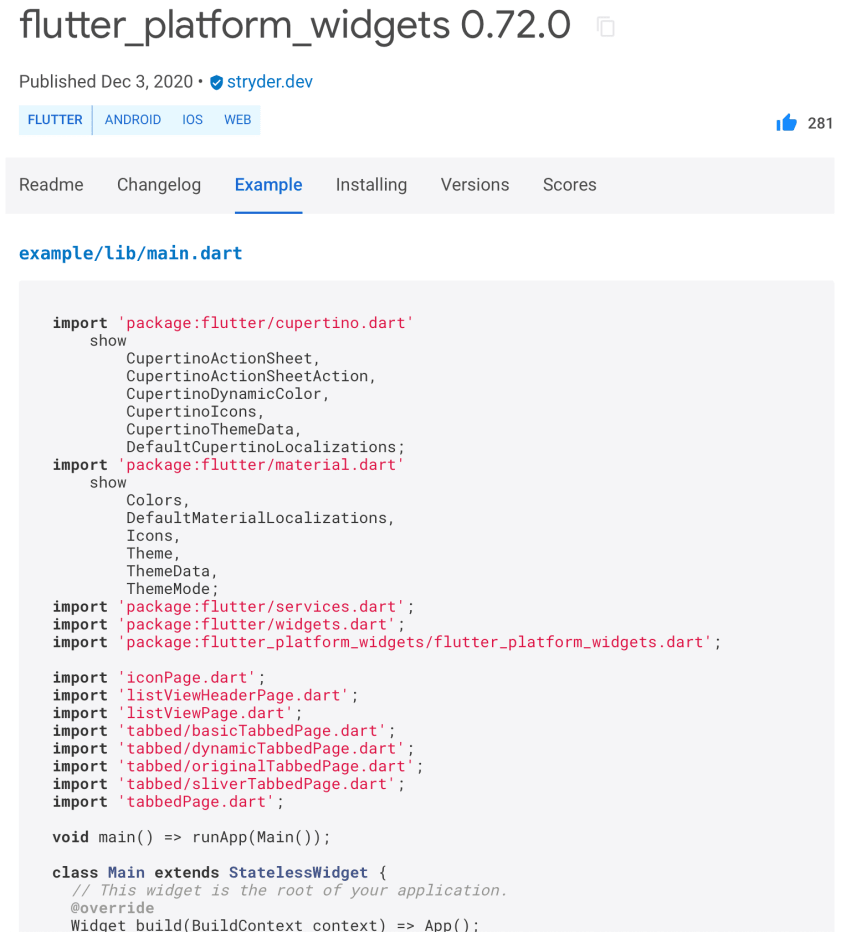
Here is an example program:
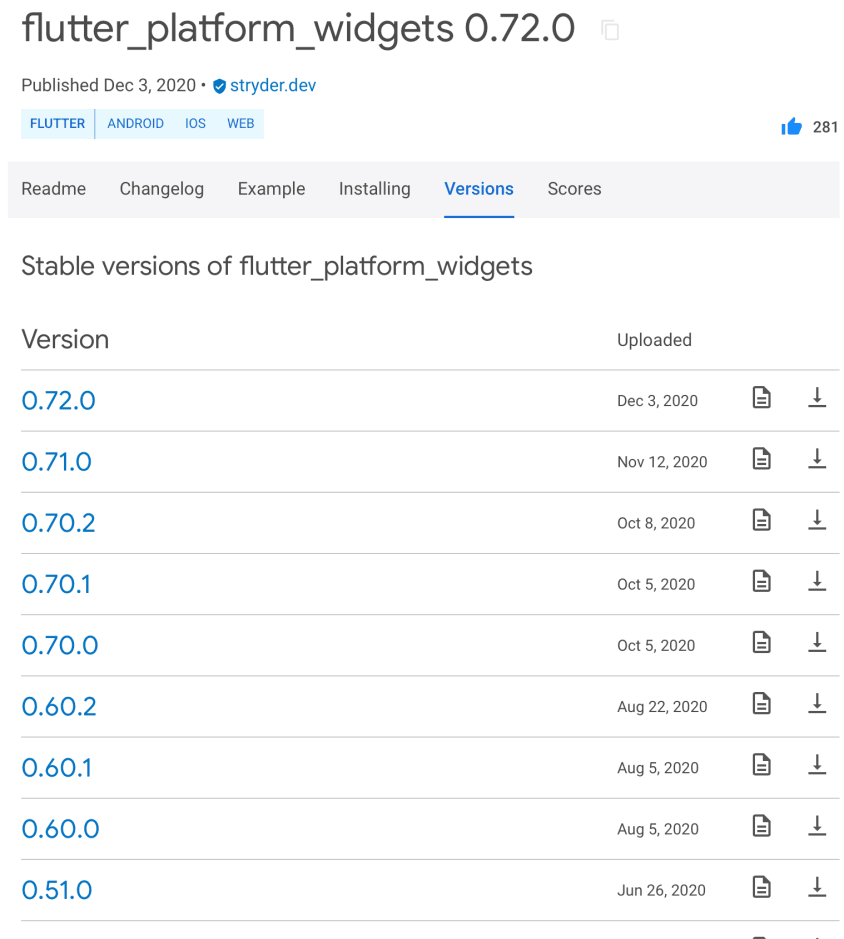
Here is the version list:
The score screen tells us about the code quality of the plugin:
Forking Plugins
Sometimes, there’s a bug in a Flutter plugin. Or we need a feature that a plugin doesn’t have. Then we can fork the plugin easily in Git. Please note that the plugin’s license needs to be compatible with forking.
Once we have the plugin forked, we don’t need to publish it. Instead, we can use the fork’s Git repository URL directly in the build file. Here’s how. Sweet!
Notable Plugins
- google_fonts: Adds Google Fonts to your Flutter application.
- url_launcher: Launch apps to open links, send emails, start phone calls or text messages. You could probably also launch application-specific URLs.
- flutter_email_sender: Send email in-app, using standard iOS/Android components.
- google_maps_flutter: Open Google Maps inside your app. Using Google Maps in your app is free on iOS and Android.
- connectivity_plus: Find out when the network connectivity of your app changes.
- image_picker: Access photos & videos on iOS and Android.
- camera: Access the camera on iOS and Android.
- image_cropper: Edit pictures.
- photo_view: Show pictures with pinch-to-zoom.
- flutter_markdown: Show Markdown.
- native_pdf_view: Show PDF documents.
- flutter_html: Show HTML.
- freezed: Generate immutable classes, complete with JSON serialization.
- flutter_easyloading: Toast overlays for progress & success/info messages.
- package_info_plus: Get the application version number for your “About” screen.
- device_info_plus: Get device information for your “About” screen.